How to Show Clients Exterior Paint Colors Before You Quote
By Inkfinish · · 7 min read
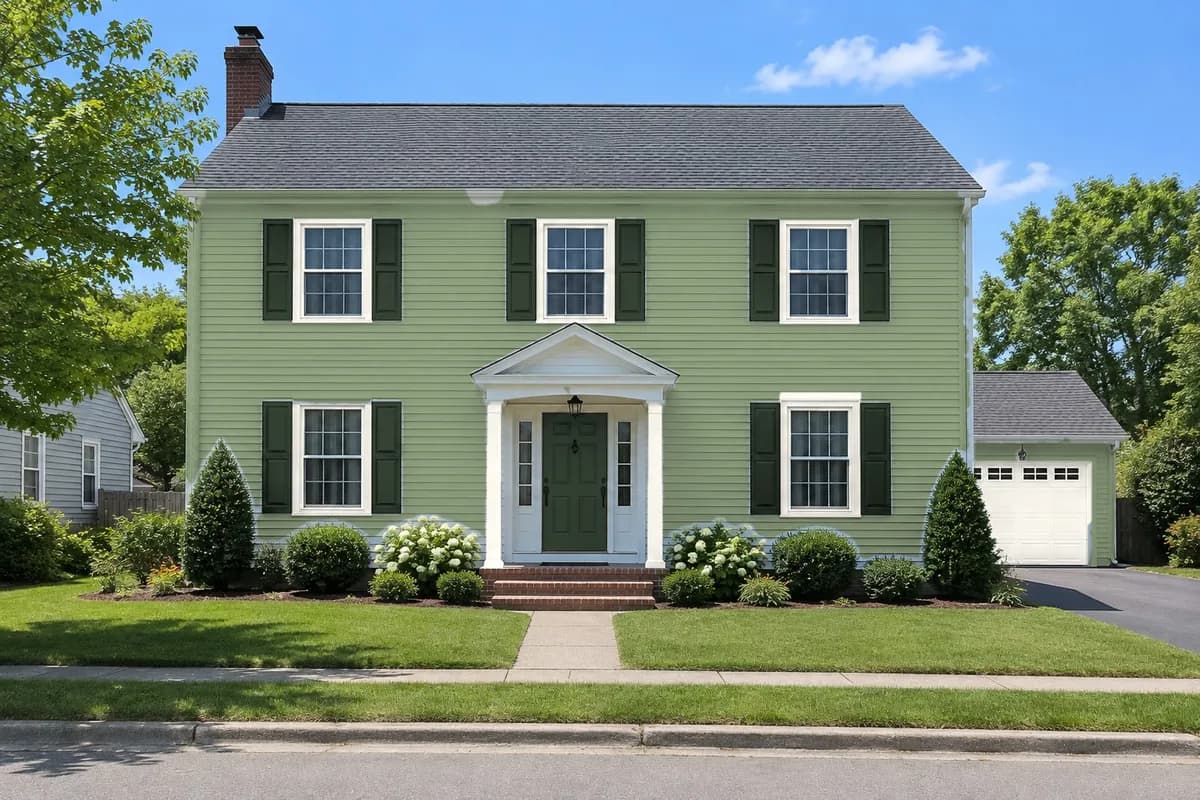 Sage and cream
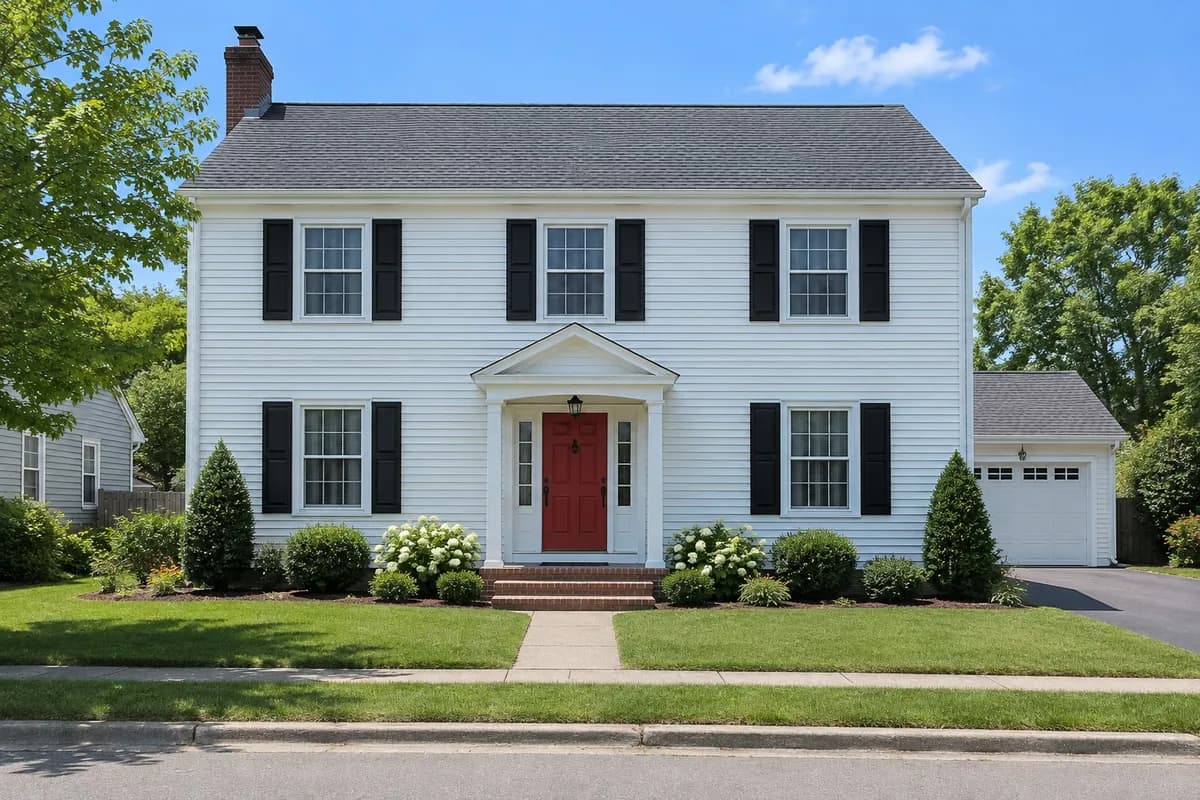 As photographed
The color conversation is where an exterior job is won or stalled. The client likes you, likes the price, and then says "let us think about the color". A week later they are still holding a fan deck up to the siding, and the job you quoted is on hold or gone to whoever helped them decide first.
This guide is for painting contractors who want that decision made on the estimate visit. It compares the three usual ways to show a client exterior colors (sample patches, fan decks and color cards, and a visualizer on a photo of their own house), says what each one is good and bad at, and walks through the third on a real example, start to finish, with every color code listed.
How to show a client exterior paint colors, in five steps
- Photograph the front of the house from the street on the estimate visit, in daylight, the whole house in frame.
- Upload it to House colors. The walls, trim, shutters, front door and garage door are found in under a minute.
- Type in the color codes you and the client are considering. Each one shows on the house straight away.
- Line up three options and compare them with the client, side by side or by holding to see the original.
- Send the options sheet with your business name and logo, and every color code listed, then put a sample of the favorite on the wall.
The rest of this page explains why it is done in this order, and what to watch for.
Three ways painters show clients colors
| Method | Good at | Weak at |
|---|---|---|
| Sample patches on the house | The real color in the real light, on the real siding | Slow and costly to try more than two or three; only shows a patch, never the whole house |
| Fan decks and color cards | Hundreds of colors in one hand; free | A two-inch chip looks nothing like a whole wall; clients pick colors that are too dark or too bright |
| A visualizer on a photo of the house | Whole schemes on the client's own house, many options in minutes, something to send | Screen colors are approximate; only as good as how well it finds each part of the house |
They are not rivals. The fan deck starts the conversation, the visualizer narrows it to one scheme while you are still in the driveway, and a sample patch confirms that scheme before the crew buys paint. What the visualizer removes is the week in the middle.
Why a chip is not enough
A color on a whole wall reads lighter and brighter than the same color on a chip, because there is so much more of it and it is lit by the open sky. Clients rarely expect this, so the chip they loved goes up looking wrong. A visualizer that keeps the photo's own light and shadow shows the color at the size it will really be, next to the roof, the brick and the garden it has to live with.
A worked example: one colonial, three schemes
Here is the house every option below was painted on: a two-story colonial with white siding, black shutters, a red front door under a small portico, a brick chimney and steps, and a single garage on the right.
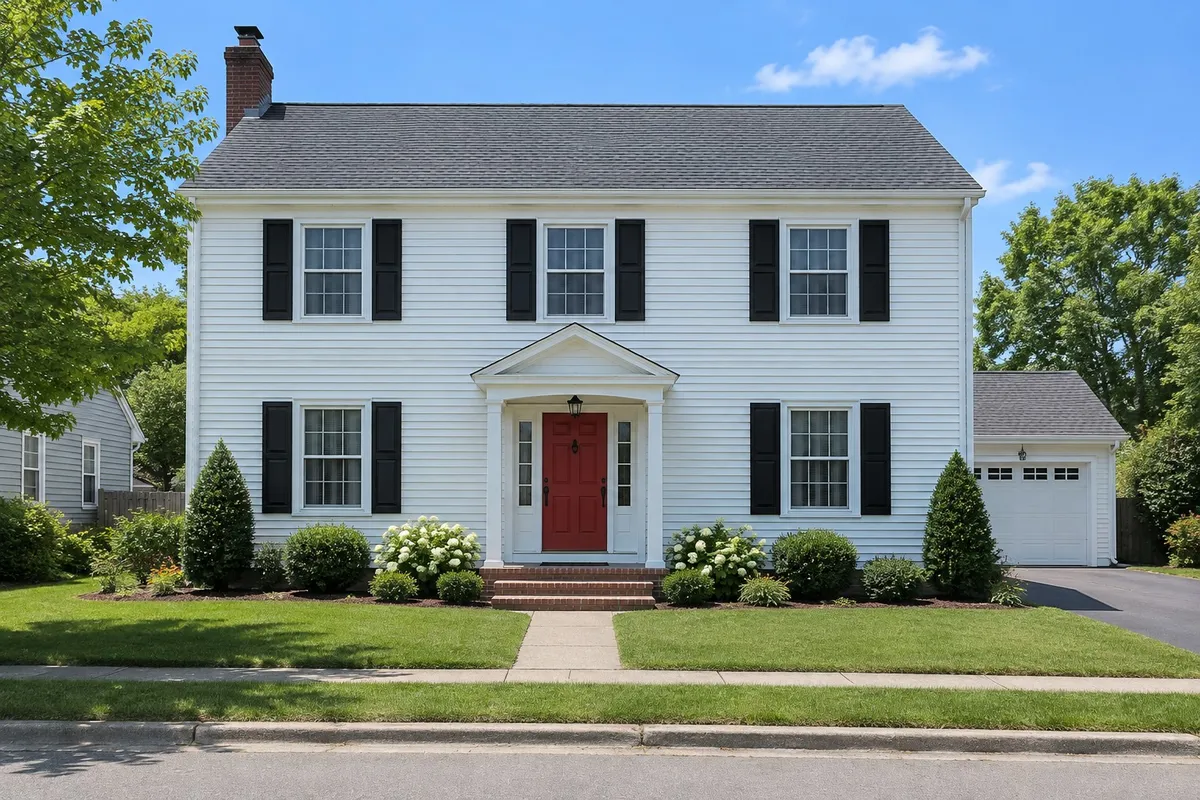
After the upload, the house's parts were found once: the siding, the trim around the windows and the portico, the shutters, the front door and the garage door. The roof, the brick chimney and steps, the windows and the garden are marked to stay exactly as photographed, and the neighbor's house at the left edge of the photo is left alone.
From then on, every color is instant. These are the three options we lined up, each a complete scheme:
| Option | Siding | Trim | Shutters | Front door | Garage door |
|---|---|---|---|---|---|
| Navy and white | #2F3D4C | #F2F0EA | #1E1E1E | #A23B2A | #F2F0EA |
| Sage and cream | #8A9A7B | #F4F1E8 | #2F3B2F | #2F3B2F | #F4F1E8 |
| Warm gray | #9C968C | #FFFFFF | #2B2B2B | #6B3A2E | #FFFFFF |
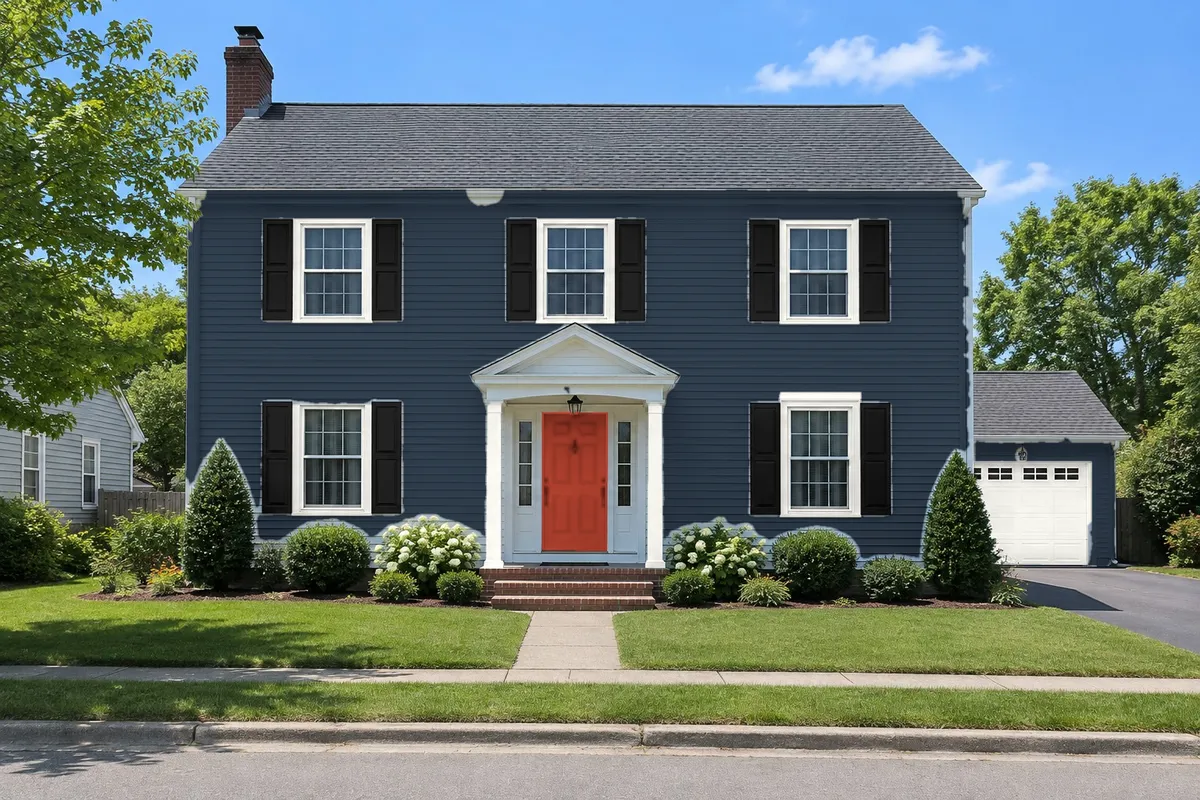
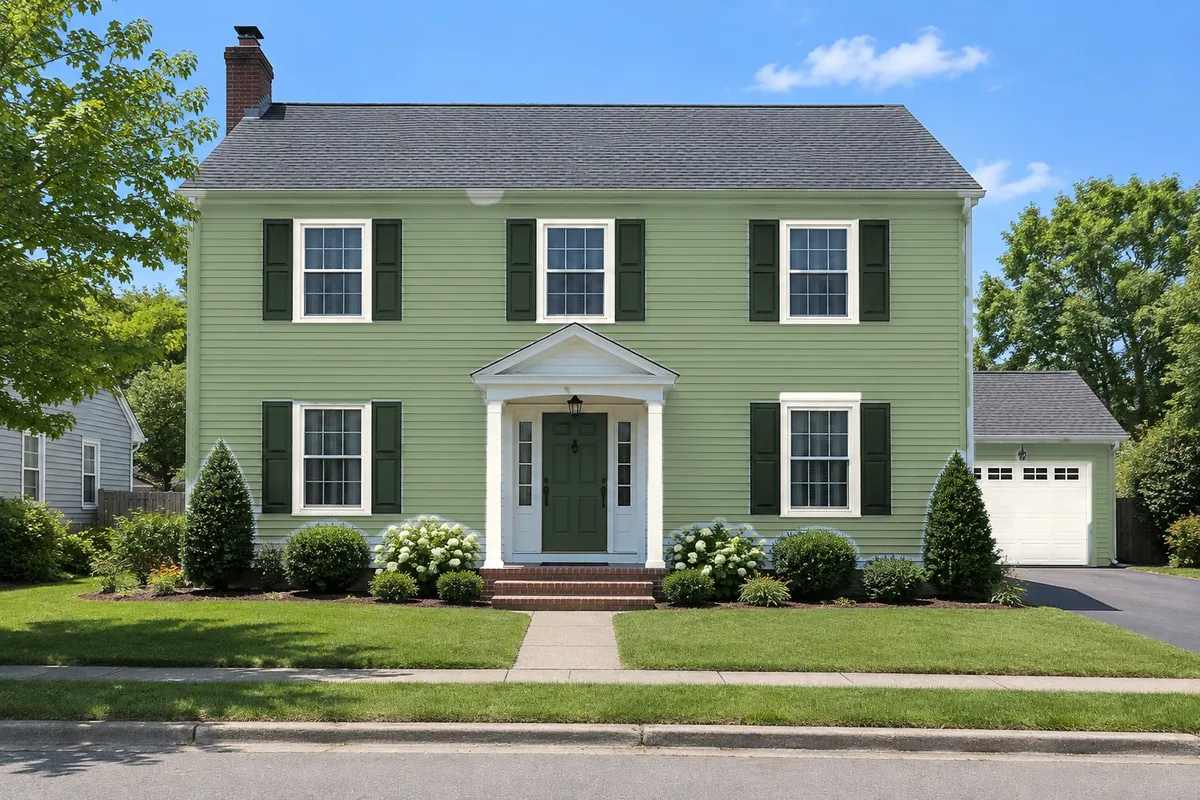
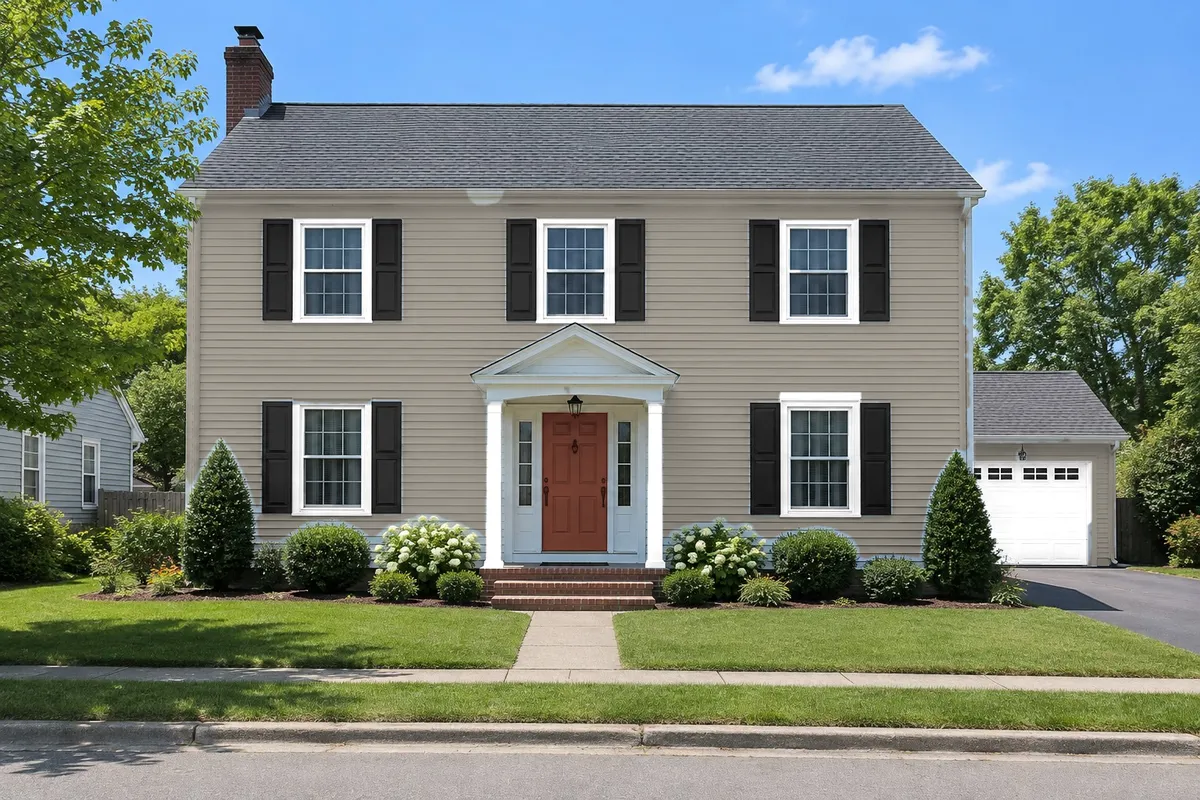
Look at the siding in each: the shadow lines under every clapboard, the shade under the eaves and the sunlit corner are the photo's own. Only the color changed. That is the point of doing it this way rather than with an image generator that redraws the house: nothing about the house itself can move, so the client is judging the paint, not a slightly different building.
What to type: color codes, not color names
Every paint brand lists a hex code (six characters after a #) on each color's page. Type that code, or pick the color with the picker. Names like "Harbor Gray" mean nothing to a screen, and two brands' grays can be very different.
A few habits that help:
- Start from the client's fixed colors. The roof, brick and stone are not changing, so pick siding that works with them first, then trim, then the door.
- Keep three options, not ten. Three is enough to compare and few enough to decide. Line up a bold one, a soft one and a safe one, as above.
- Change one surface at a time once the client is close. "The sage, but with the brown door from the gray one" is a two-second change.
- Try the door last. A front door is the cheapest part of the job to change and the one clients enjoy choosing most; it is a good way to end the conversation with a yes.
Check the photo before you show it
Before you turn the screen around, look at the edges:
- Did every part get found? A part the first pass missed, such as a narrow sidelight or a second door, stays as photographed. Pick what it should be and tap it on the house; it is found and fixed in a few seconds, with undo.
- Did anything get painted that should not have been? Choose "Not painted" and tap it.
- Is the photo straight on and in daylight? A house photographed at a steep angle, at dusk or half hidden by a tree gives the client a worse picture of the color, whatever the tool.
Send it: one sheet with your name on it
The options sheet puts the three schemes side by side, with every color code under each one and your business name, contact line and logo at the top. There is no Inkfinish branding on it. Text it or email it to the client before you leave the driveway, while the conversation is still fresh.
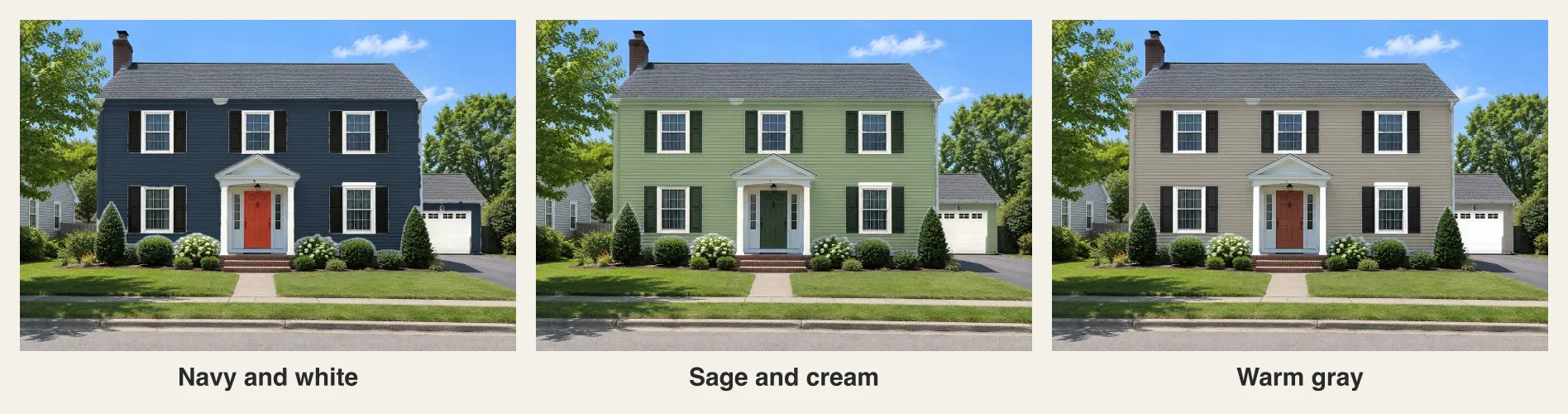
That sheet does two jobs. It keeps the color decision moving after you leave, and it puts your name, not a paint store's, on the thing the client shows their partner that evening.
Then confirm it on the wall
Screen colors are approximate. Monitors and phones differ, and so does daylight from morning to evening. Once the client has picked a scheme, put a sample of the siding color on the sunny side and the shady side of the house and have them look at it at different times of day. This step is fast now, because you are checking one scheme rather than searching through twenty.
What it costs
- Your first house is free when you sign in, with a watermark across the photo.
- After that, a house is 5 credits, from a one-time credit pack or a plan. A Starter pack ($19, 100 credits) covers 20 houses; the Standard plan ($15 a month, 800 credits) covers 160 a month.
- Every color after that costs nothing: trying codes, comparing options and downloading the sheet are free. Fixing a part the first pass missed is 1 credit a tap.
- The four sample houses are free with no sign-in, so you can try the tool on a colonial, a craftsman, a farmhouse and a stucco house before uploading anything. Prices are on the pricing page.
Each house is saved to your account with its options, so you can reopen it when the client calls back with "what about the green again?". Delete it whenever you like.
A few honest limits
- Exteriors only, photographed from the front. Interiors are not supported yet.
- Brick, stone, the roof and the chimney are never painted. If the job includes painting brick, show it with a sample instead.
- It changes colors, not materials. It will not show new siding, a new roof or added shutters. For that kind of change, a render of the house in the studio is the better tool; our guide to virtually painting a house exterior shows how.
For more on how the tool fits an estimate visit, see the page for painting contractors.