SketchUp AI Render Without a Plugin
By Inkfinish · · 6 min read
 Render
 Drawing
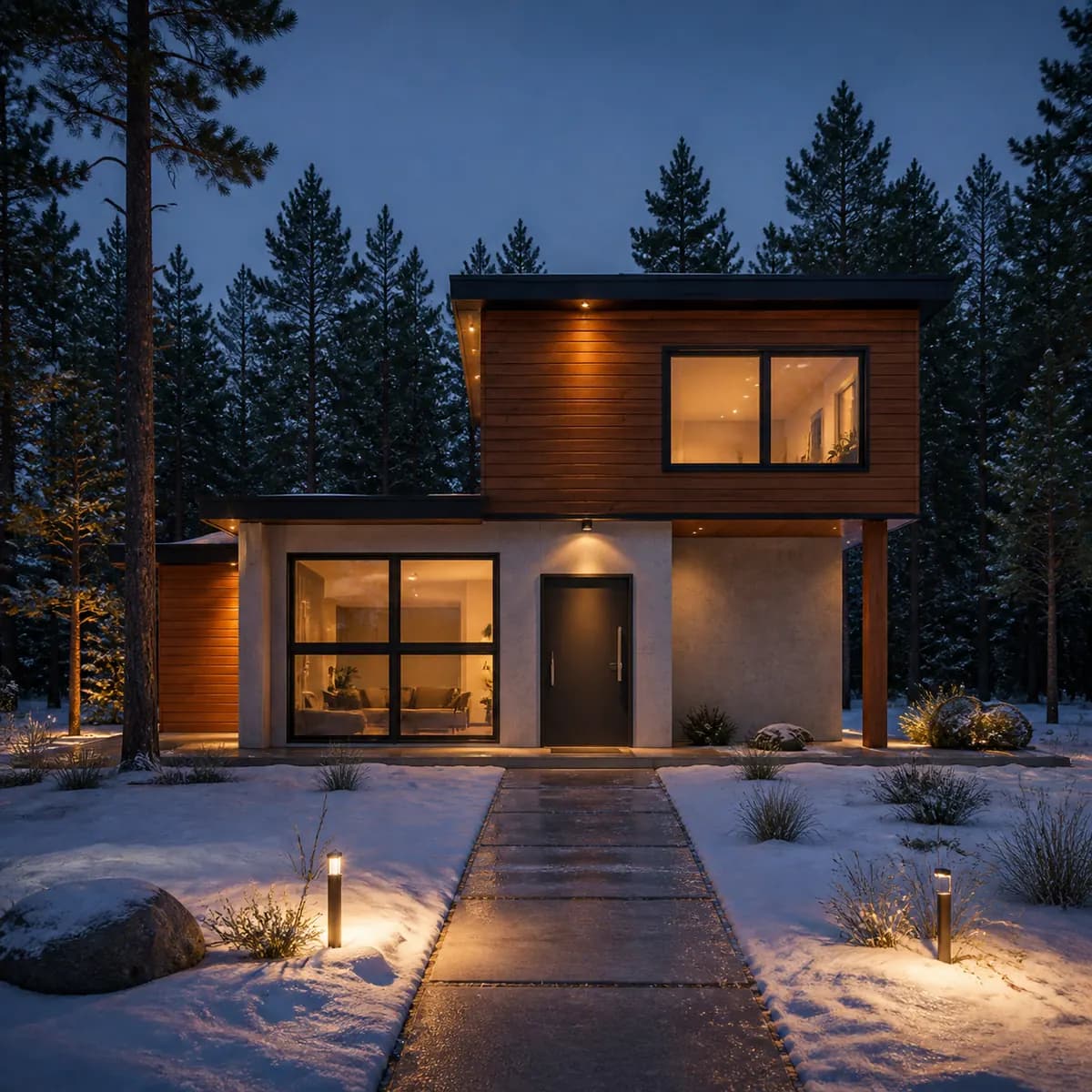
You can get an AI render of a SketchUp model without installing an extension. Export the view as an image, upload it in the browser, name the materials, and a photoreal render comes back in about 20 seconds. Then a line check shows how much of your model's linework the render kept, so you can see at once if a window moved.
This post is the SketchUp version of rendering a 3D model screenshot with AI. It covers the SketchUp settings, the export, what to type, and when an extension is the better choice.
Why render SketchUp with AI from an image
An image-guided render does not need your .skp file. It needs what the view already shows:
- Edges. Every edge SketchUp draws is a line the render is asked to keep: eaves, reveals, mullions, the line where the walls meet the ground.
- The camera. Your SketchUp camera becomes the render's camera, so the perspective you set up is the one you get back.
- Openings and massing. Where the glass is and how the volumes stack are read straight from the picture.
What a white SketchUp model does not carry is material. That comes from your words. The view says what shape; the description says what finish.
Because the input is a picture, it works with any version of SketchUp, including the free web version, on any machine. Nothing is installed and the model never leaves your computer.
SketchUp settings for a clean render
These take a minute and make the biggest difference.
Camera
- Camera > Perspective, then Camera > Two-Point Perspective. Two-point keeps vertical lines vertical, which is what a building photo looks like.
- Eye height. For a street view, use the Position Camera tool and set an eye height of about 5½ feet. Use an aerial view only when you mean one.
- Field of view. Keep it moderate, around 35 to 45 degrees. A very wide view stretches the corners of the frame, and the render keeps that stretch.
- Save it as a Scene. A scene keeps the camera and style, so you can export the same view again after you change the model.
Style
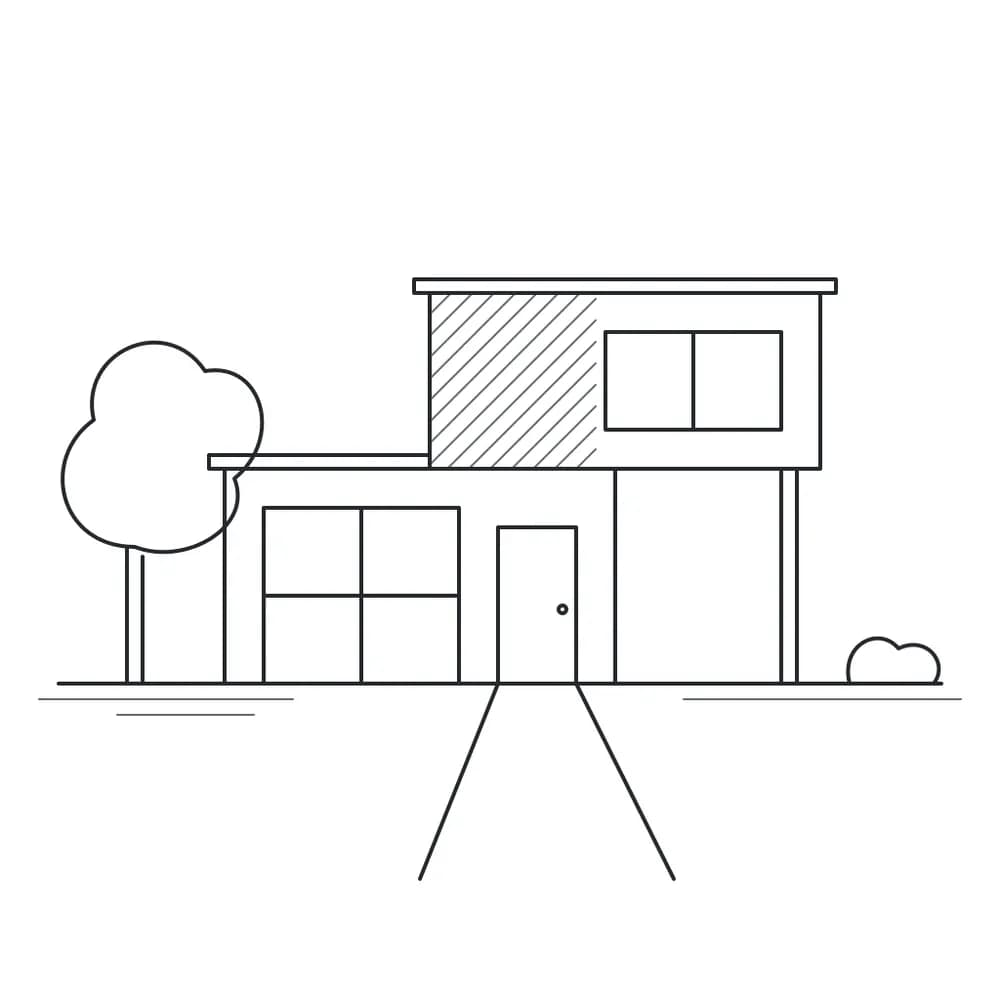
- A plain white style with edges on. Default Styles has simple white styles; any style with white or light gray faces and thin dark edges works.
- Turn off profiles, sketchy edges and endpoints if your style has them. Thick or wobbly lines become wobbly edges in the render.
- Turn off View > Axes and hide guides, section planes, dimensions and text.
- Leave shadows off unless you mean them. The line check reads a strong shadow edge as a line, and a render with different light moves it.
- Hide the placeholder textures you do not mean. A default wood or a stock brick is a material hint the render may follow.
Context
- Add context only if you want it rendered. Neighbor massing, a curb line or a tree component will become something in the render.
- Scale figures can stay. Uploads are turned away only when a person is the main subject.
Export the view
Use File > Export > 2D Graphic and choose PNG or JPEG. In the export options, set the width to about 2,048 pixels. Uploads are scaled to 2,048 pixels on the long edge, so a larger export adds nothing. The upload limit is 10 MB.
A plain screenshot of the viewport also works. Crop out the toolbars, the trays and the window frame so only the model is left.
What to type for a SketchUp model
Name materials in the order you would read the building: base, walls, roof, openings, ground, then light and setting. For a two-story white model:
Light gray brick ground floor, white painted timber cladding above, black window frames, standing seam metal roof, gravel drive, a few young oaks, soft overcast light
That is an example to type, not a render shown here. Three rules:
- Name a material for every surface you care about. If you leave the roof out, the render chooses one.
- Choose one light condition. Two lights in one brief make the model pick one.
- Do not describe shapes. The view already says "two stories with a gable roof". Words about shape can only repeat the image or argue with it.
There is more vocabulary in how to write a render prompt for materials and light.
Check what the render kept
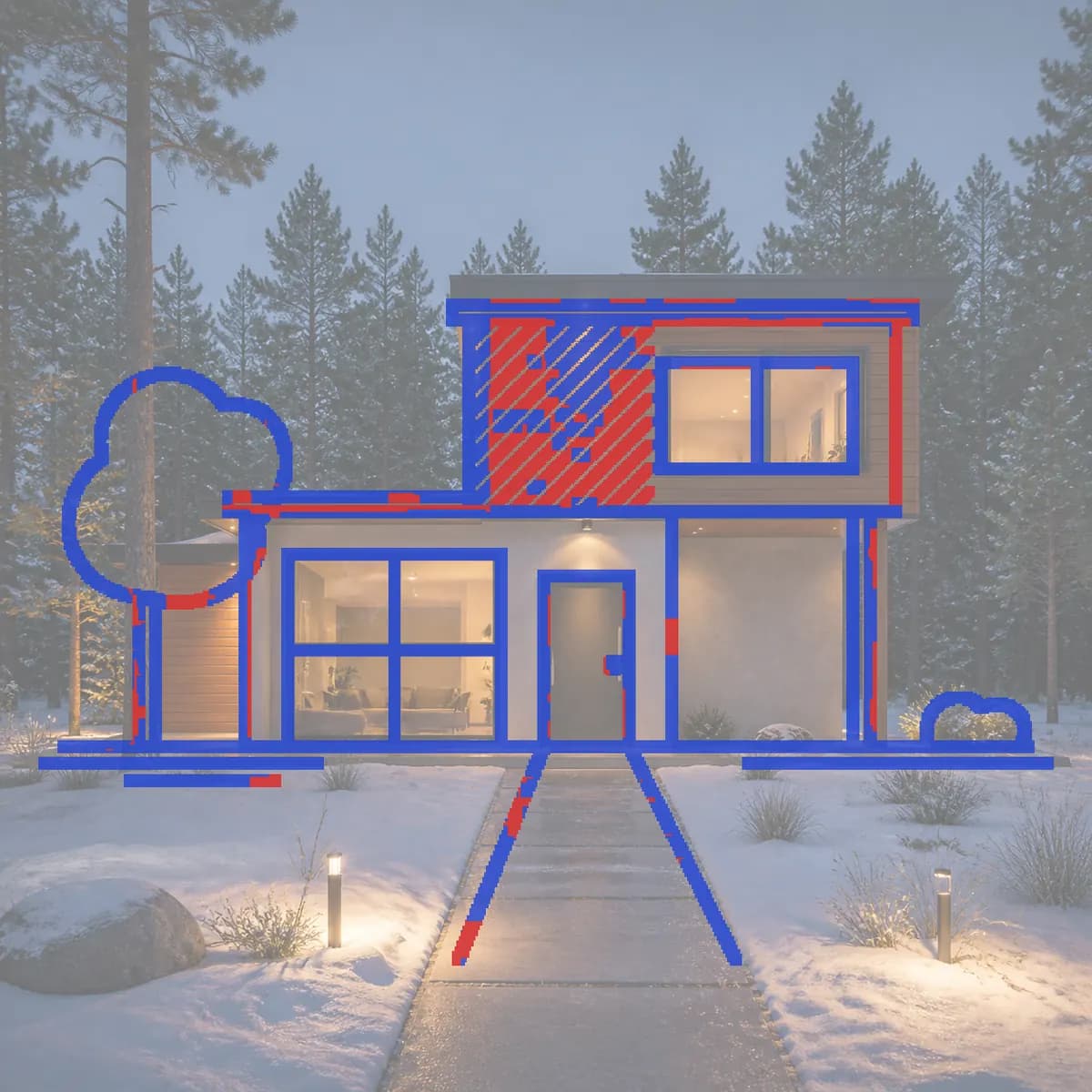
When the render arrives, drag the handle between it and your SketchUp view, then press "Show lines". Your model's lines are drawn over the render: blue where the render has an edge in the same place, red where it does not. A score says what share of your lines were kept.
Look first at red along a roof edge, an eave or a window head. Red spread across a wall face usually means a tone became a material, not that the wall moved. More on reading it in does AI rendering keep your design?.
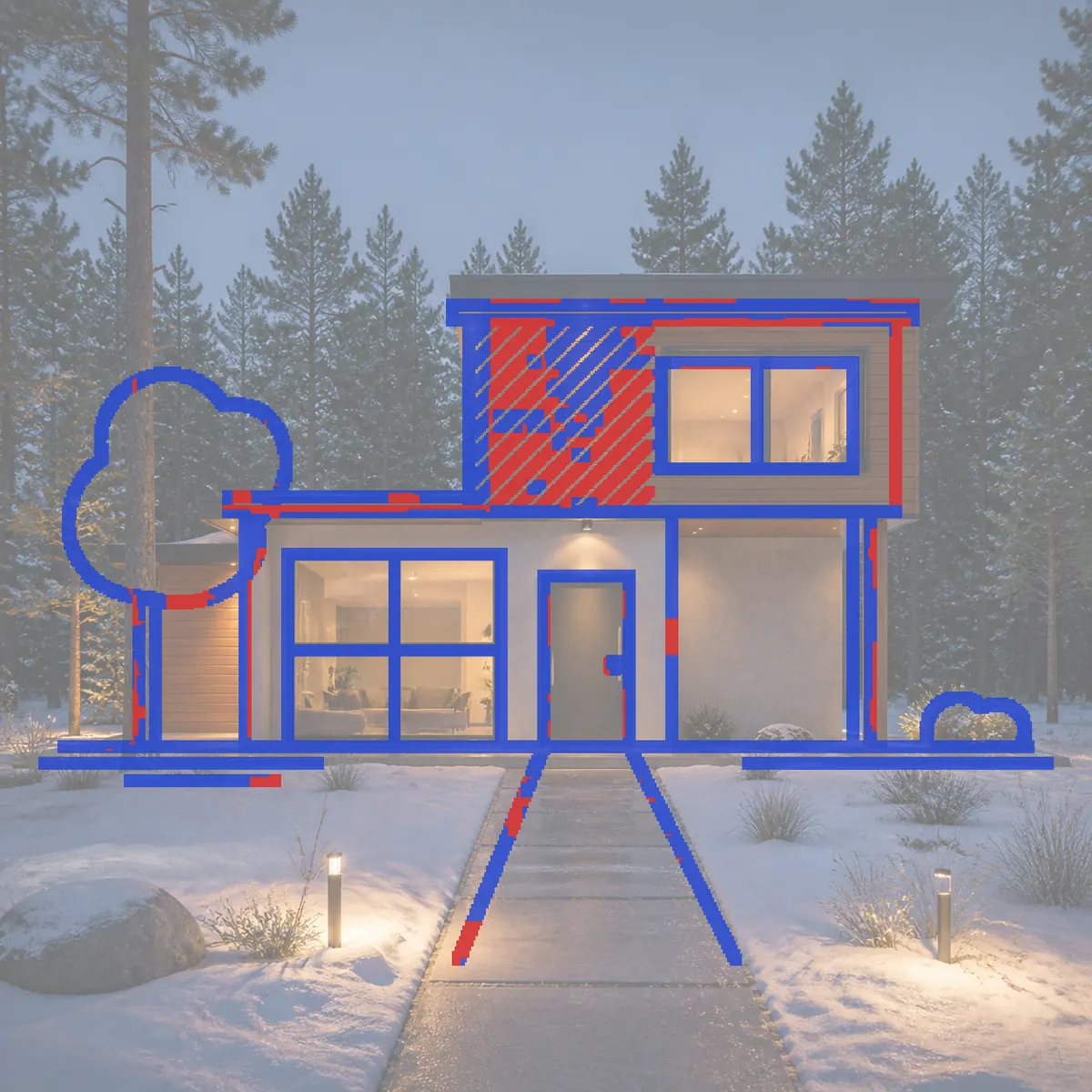
If one part is wrong, such as the front door, use "Change just this": mark that part, say what goes there, and only that area is redrawn. A render and a change each cost 5 credits, and a failed render is refunded.
Several views of one SketchUp model
Make one Scene per view, export each, and upload them as separate designs. Type the same material description for each so they match. Descriptions typed per image can still vary a little, so check that the brick reads the same in every view before you send them.
A second material scheme for the same view is a follow-up message in the same design. It is saved as a new version below the first, and nothing is overwritten.
Or open the model itself
You can also skip the export. In SketchUp Pro, File > Export > 3D Model saves a COLLADA (.dae) file. Add it in the studio, turn it to the view you want, and render that view. The studio's "Lines" style shows the model in plain white with its edges drawn, which follows the settings above for you. Only the view is uploaded; the model stays on your computer.
To check the export opens first, the free DAE viewer shows it in your browser, and the DAE to GLB converter makes a GLB for web and AR viewers.
When a SketchUp extension is the better choice
An extension that runs inside SketchUp does things an image cannot:
- Live updates as you orbit or edit. With an image, each change to the model means a new export.
- Many matched views from the materials you assigned in the model.
- Outputs we do not make, such as animations and walkthroughs.
For one or two strong images of a view, today, with nothing to install and a check of what the render changed, an exported image is enough.
Questions people ask
Can I render SketchUp with AI without a plugin?
Yes. Export the view with File > Export > 2D Graphic, upload it in the browser, and name the materials. The render uses the picture, so nothing is installed in SketchUp.
Does it work with SketchUp Free, the web version?
Yes. Any version that can show the model in perspective works, because the input is an image. A screenshot of the browser viewport, cropped to the model, is enough.
Will the render change my design?
It is asked to keep every edge in the view, and the line check shows which lines were kept and which were lost. Small details such as thin mullions can be simplified, so zoom in on the overlay before you send it to anyone.
What size should the SketchUp export be?
About 2,048 pixels on the long edge, as PNG or JPEG, up to 10 MB. Larger uploads are scaled down to that.
Is it free to try?
Your first 3 renders are free, no sign-up needed. Free renders are watermarked and at standard size. The pricing page has the plans.
When the scene is ready, upload your SketchUp view and render it free.